Connecting Google lets you see your Google performance and reply to your Google reviews without leaving TapReview. It is a one-time setup that you can disconnect at any time.
How to connect
- In the business panel, open Integrations from the sidebar.
- On the Google Business Profile card, click Connect.
- Sign in with the Google account that manages your business listing and grant access.
- TapReview automatically links the same Google location you picked during sign-up. If that Google account does not manage that location, the connection is refused.
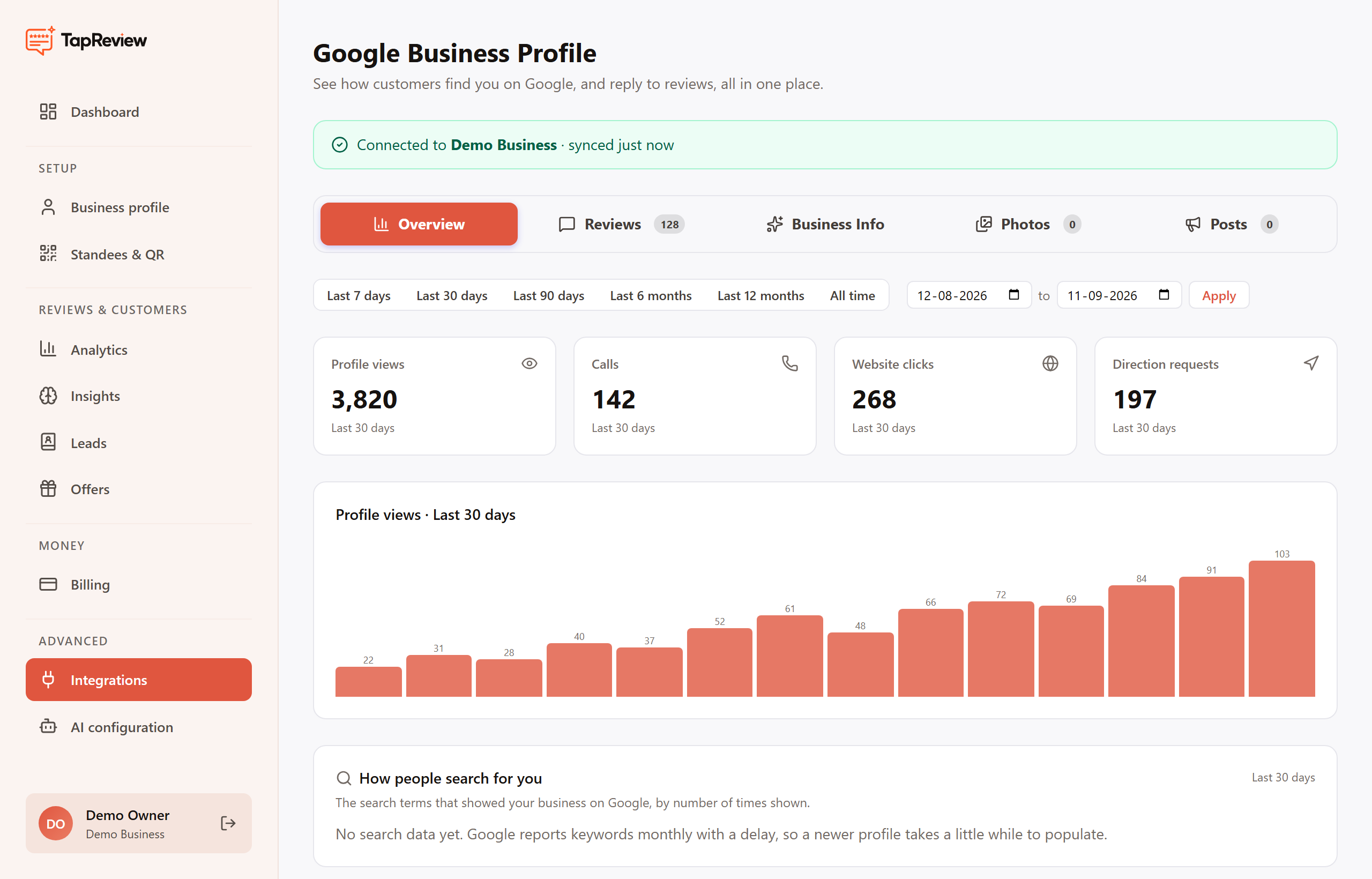
Once connected, the Integrations card shows a green Connected badge, and the Google Business Profile screen opens with your data.
What connecting enables
- Performance metrics: profile views, calls, website clicks, and direction requests.
- Reply to your Google reviews from the panel, with an AI-drafted reply to start from.
- Edit your Google business info (description, hours, categories, and more).
- Manage Google photos and posts.
You can disconnect any time using Disconnect on the Google screen. Use Sync now to pull the latest data from Google on demand.
Next in Google Business ProfileReading your Google metrics Back to Google Business Profile